Set up role for Experiences
Overview
To configure a user’s access to Experiences, create allow and deny rules on the Experiences tab of the user’s role. Allow rules grant access to Experience types, and deny rules further restrict that access.
NOTE: A user can perform only the actions explicitly defined by the allow rules.
NOTE: For a user to be able to bind content in Experiences, ensure the relevant content and/or media permissions are defined in their custom role.
How to set up Experiences permissions
To add Experiences permissions to a role:
Log in to the Contentful web app.
Click Settings and select Roles & permissions.
Either create a new custom role or edit an existing one. The role editor page is displayed.
Go to the Experiences tab.
In the Allowed area, click New allow rule to define the allowed Experience type and the actions the user can perform with it.
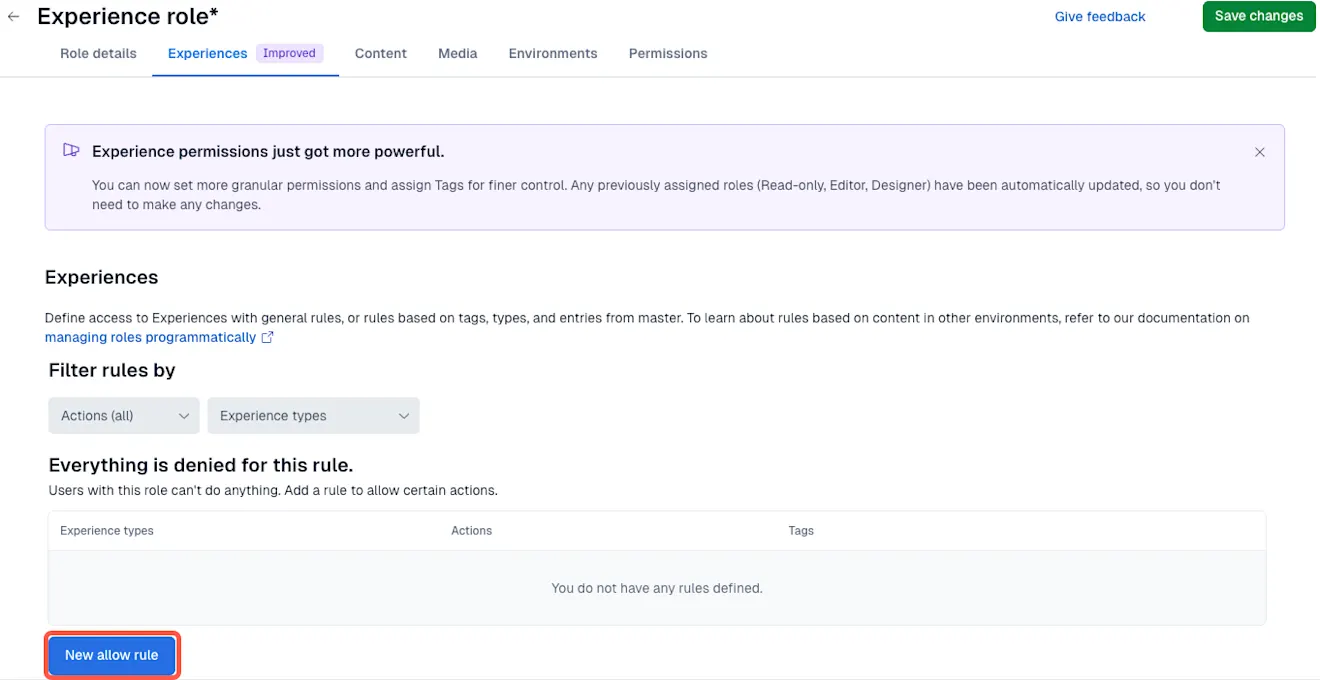
NOTE: A user can perform only actions explicitly allowed by allow rules in their user role.
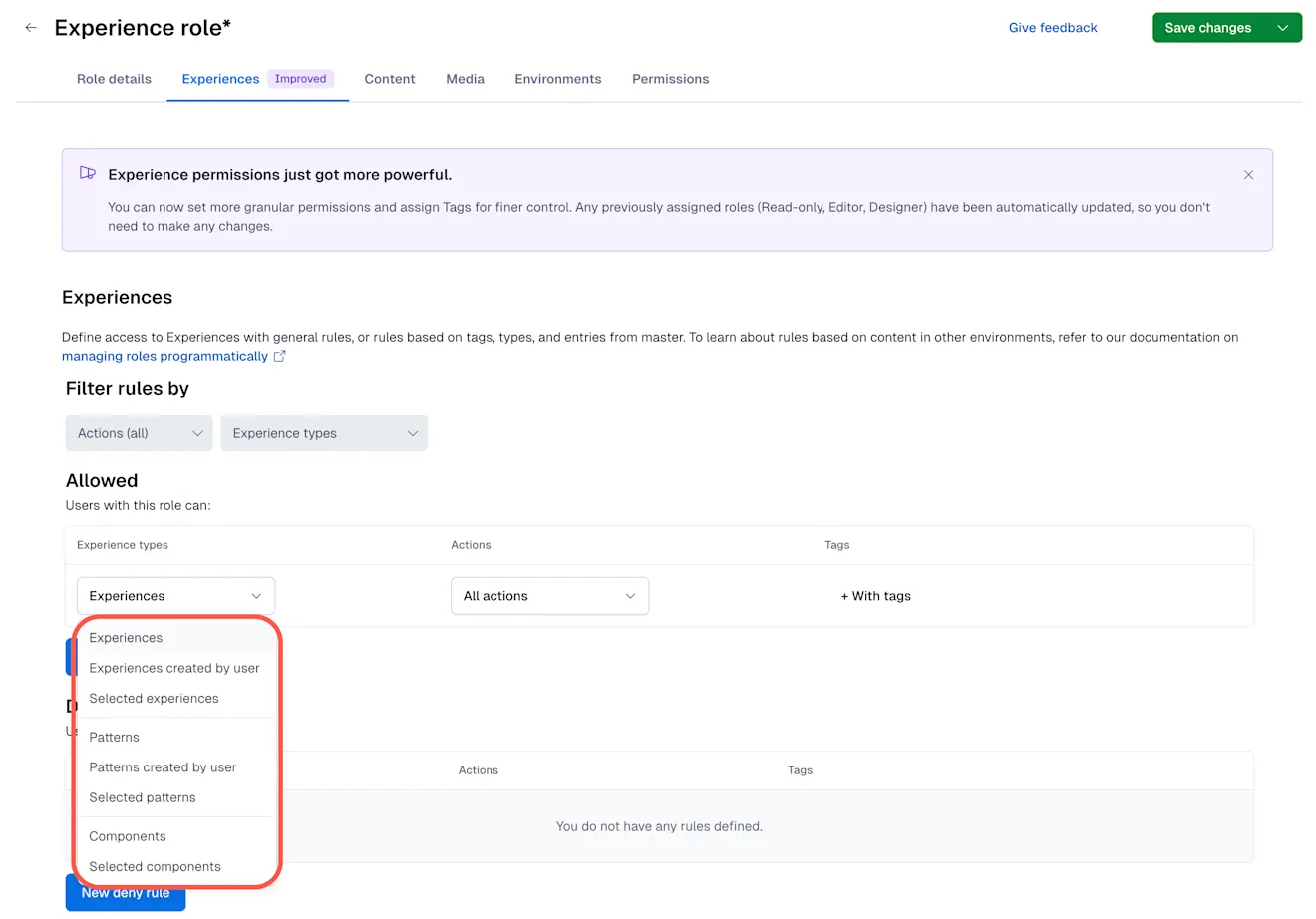
Select the Experience type according to the following options:
Experiences - Select this option to apply the allow rule to all experiences.
Experiences created by user - Select this option to apply the allow rule only to the experiences created by the user.
Selected experiences - Select this option to select a specific experience(s) the allow rule applies to.
Patterns - Select this option to apply the allow rule to all patterns.
Patterns created by user - Select this option to apply the allow rule only to the patterns created by the user.
Selected patterns - Select this option to select a specific pattern(s) the allow rule applies to.
Components - Select this option to apply the allow rule to all components.
Selected components - Select this option to select a specific component(s) the allow rule applies to.
Under Actions, select an action the user role can perform with the selected experience type from the drop-down menu.
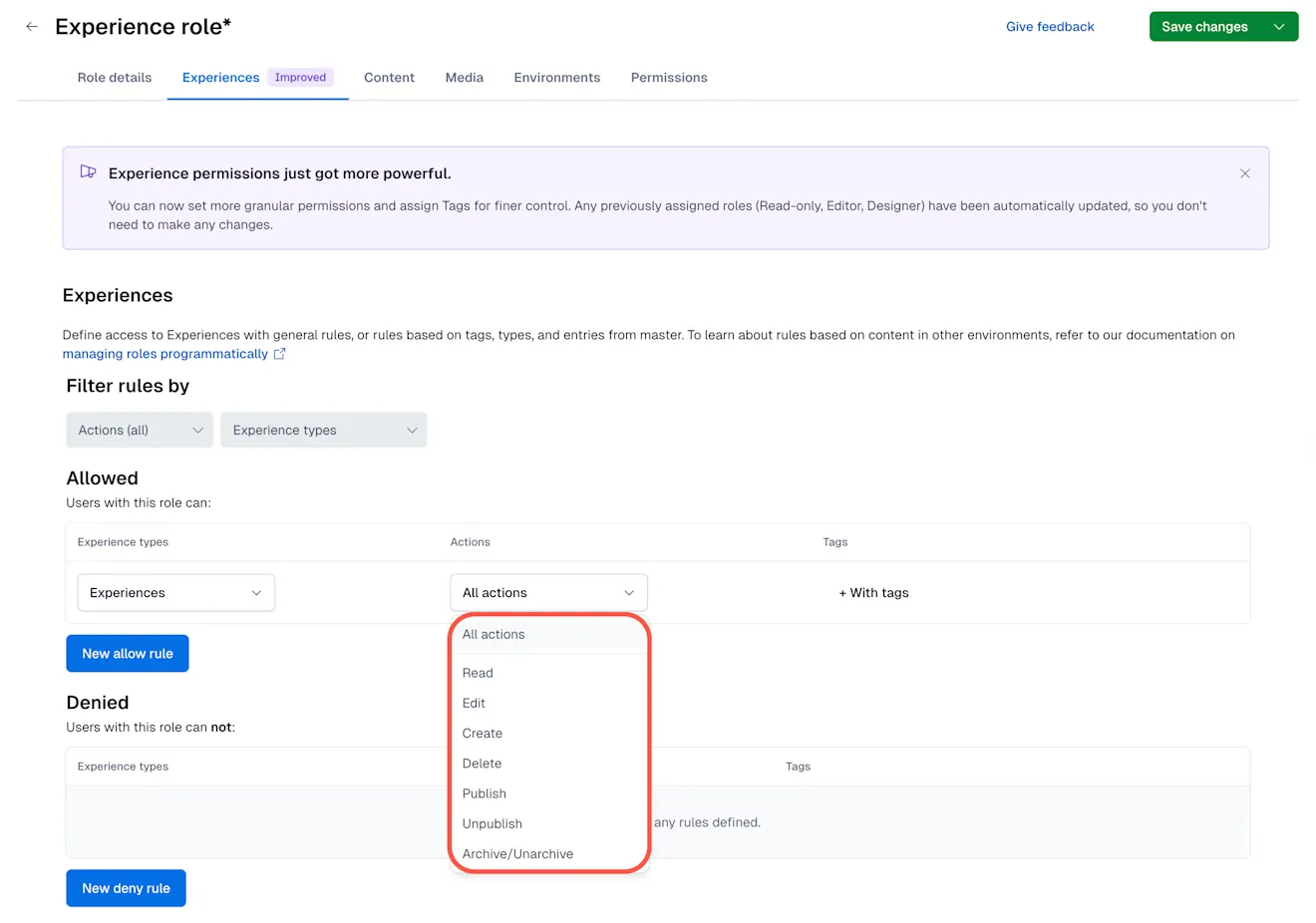
NOTE: You can select All actions for full access to the selected Experience type, or select a specific action for more granular permissions.
NOTE: For Components and Selected components, only Read action can be selected.
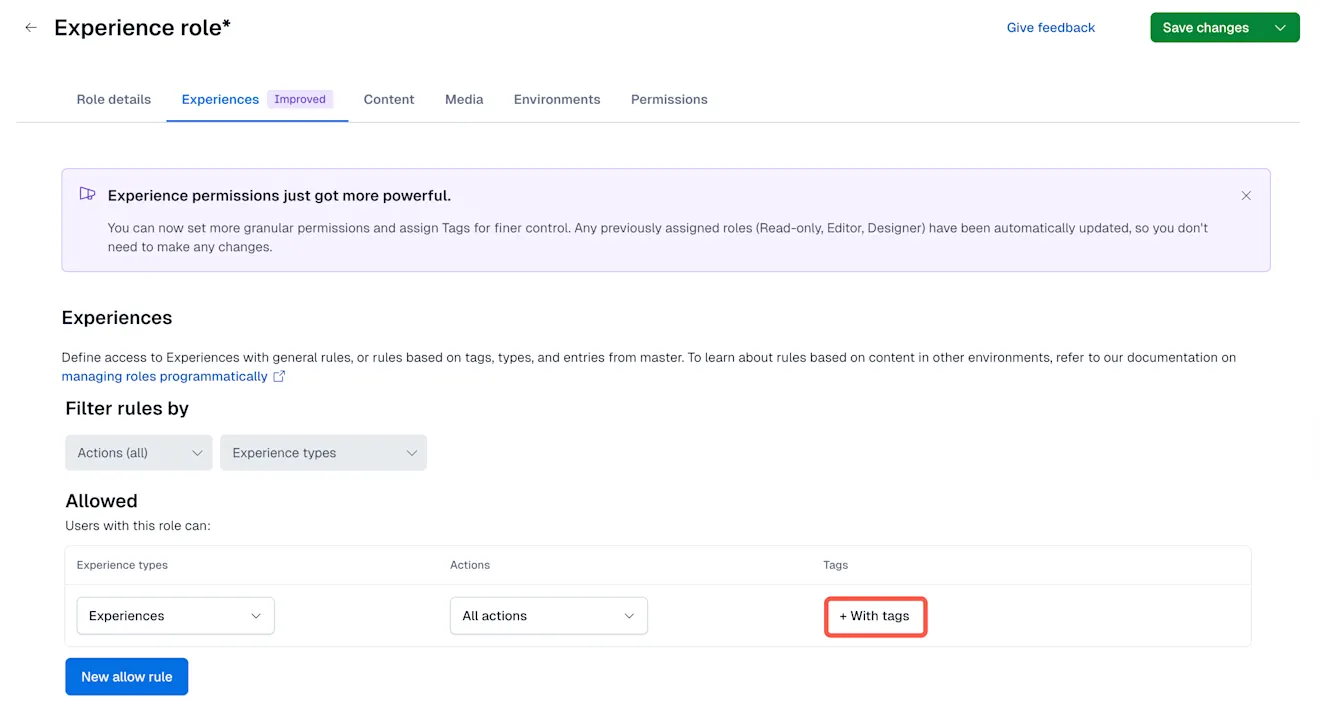
Click +With tags and select one or multiple tags to apply the permission only to the experience types with the selected tag(s).
In the Denied area, click New deny rule to define the denied Experience types and actions.
Important: Deny rules override allow rules. They restrict the permissions granted to the user by allow rules.
Repeat steps 6-8, selecting the experience type, action, and tag options for the deny rule.
Click Save changes to apply your changes.
Set experiences permissions through the API
Experiences permissions can be set up using the Content Management API. Through the API, you can granularly add individual permissions to a role, each permission corresponding to an action.
Changes to a role through the API override this role’s setup made through the web app UI. Updating Experiences permissions via the web app will override those set via the API.